
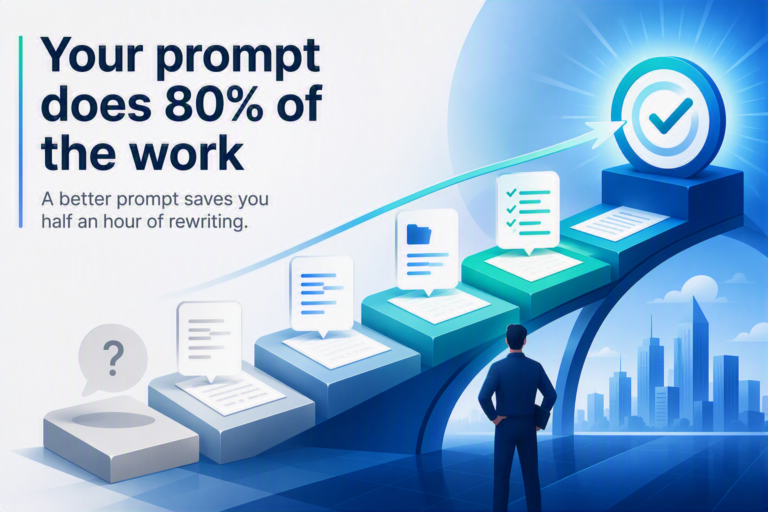
Here are two prompts, both submitted to Copilot by the same person trying to achieve the same goal.
- Summarise this policy.
- You’re helping me brief an audit committee. Summarise the attached expenses policy in five bullets, covering what the control expectations are and who owns them. List anything separately as bullet points.
The second took about twenty seconds longer to write. It saves the half hour you’d otherwise spend rewriting the answer to the first.
I’m going to keep coming back to those two prompts because the whole of this post is really just the distance between them.
It isn’t the wording
The obvious explanation for the gap is that the second prompt is better written. It isn’t, particularly. It’s a bit clunky, and I wouldn’t hand it in as prose. What it is however more complete.
There’s a belief that prompting is a matter of phrasing. That somewhere out there is a magic form of words, and the people getting real value from AI have found it and you haven’t. This is why prompt libraries circulate as lists of sentences to copy and paste. It’s also why people copy them, get something mediocre back, and quietly conclude the whole thing is oversold.
The difference isn’t the words. It’s how many of the slots got filled.
Four parts, and everyone’s version of them
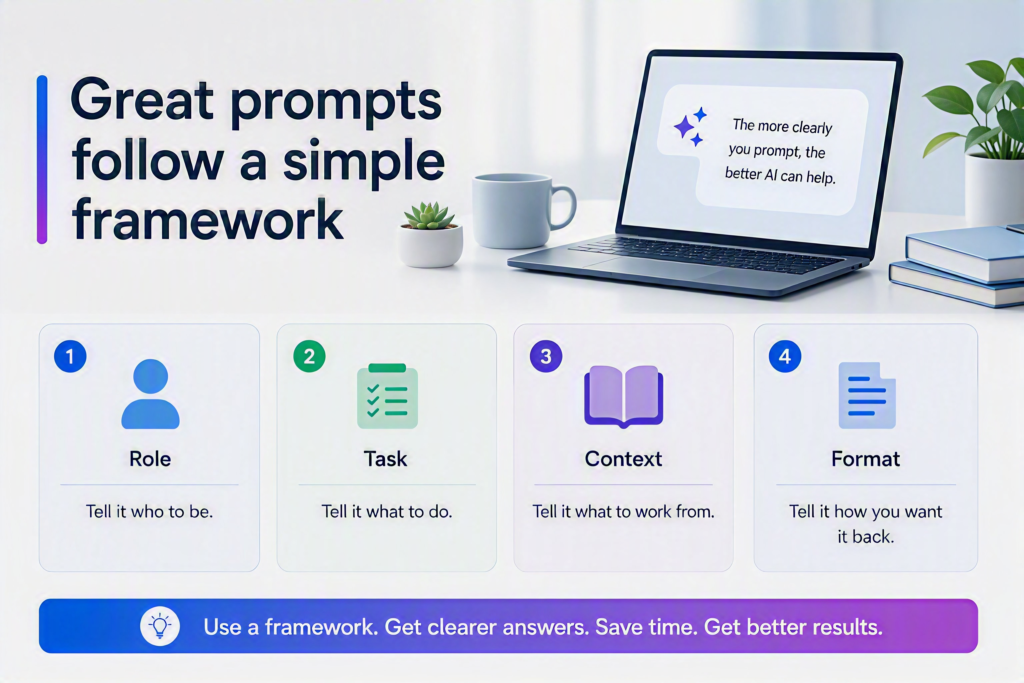
I’ve used Role, Task, Context, Format as shorthand for a while, because it’s short enough to remember in a meeting. Tell it who to be, what to do, what to work from, and how you want it back.
What’s interesting is that I didn’t invent it and nor did anyone else. Microsoft’s own guidance for Microsoft 365 Copilot describes a prompt as having four parts: Goal, Context, Source and Expectations. That’s from Microsoft’s support documentation, and it’s the first learning objective in Microsoft’s Learn module on prompting. Google’s training materials use Task, Context, References, Evaluate, Iterate. Different labels, near enough the same thing.
Nobody agrees on the acronym. Everybody agrees on the ingredients: a clear task, the background, the material to work from, and the output you want back. That convergence is the actual evidence here. When people working independently on different platforms keep arriving at the same four or five components, the components are probably real and the acronyms probably aren’t.
Role is the weakest of the four, and that’s fine
Here’s the bit that tends to surprise people, and the reason I’ve stopped a Role in every one of my prompts.
Zheng and colleagues, in When “A Helpful Assistant” Is Not Really Helpful: Personas in System Prompts Do Not Improve Performances of Large Language Models, ran a systematic test on this. They built a list of 162 roles spanning different professions, relationships and domains of expertise, and ran them across four families of language model against 2,410 factual questions. Adding a persona to the system prompt did not beat adding no persona at all. They also found that working out in advance which persona would help was close to guessing.
Which is awkward, because “act as a world-class expert with thirty years of experience” is the single most copied piece of prompting advice in circulation.
Role is a tone control, not an accuracy control. Telling Copilot it’s briefing an audit committee genuinely changes the register, the assumed level of knowledge and what it decides to leave out. That’s useful and worth doing. It does not make the content more correct, and if you’re relying on it for that, you’re relying on the wrong slot.
Keep using Role, just demote it.
Everything above works anywhere but here’s what doesn’t.
Nothing so far is Copilot-specific. Prompt slots, formats, roles & personas: all of it applies equally to ChatGPT, Claude, Gemini or whatever your organisation has landed on. That’s deliberate, because the foundation genuinely is portable.
The rest of this post isn’t. Copilot has one structural advantage over a general-purpose chatbot, and a set of built-in tools most people with a licence have never opened.
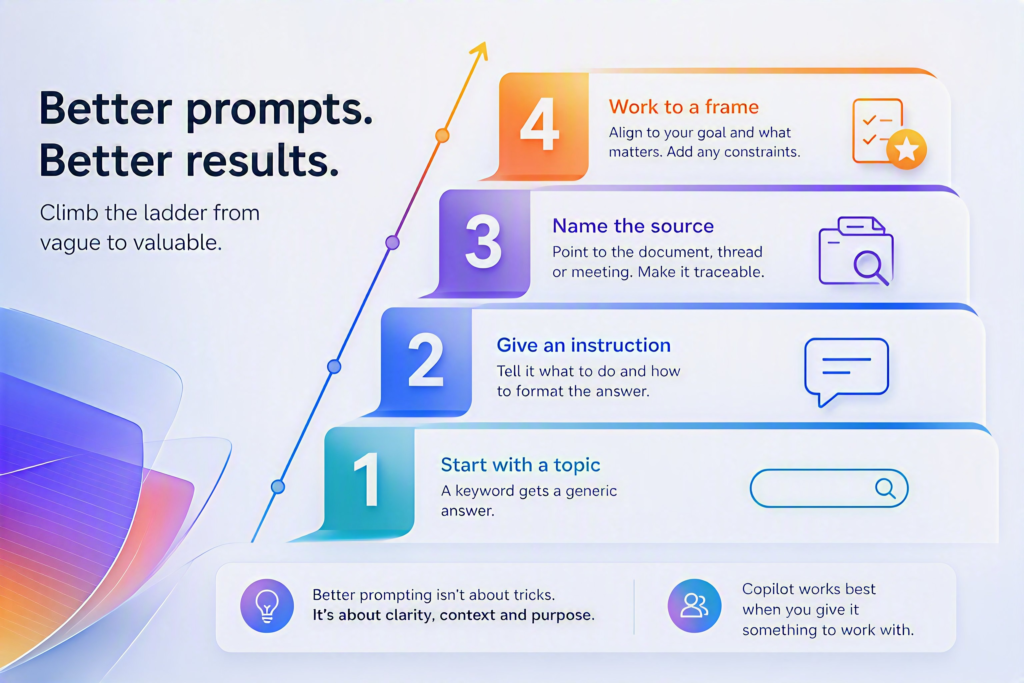
Before we get there, let’s improve the expenses policy prompt, from simple request to using a framework.
Rung one: the search box. Summarise the expenses policy.
This is where most people start. You type a topic rather than an instruction, because a decade of Google has trained you that a search box wants keywords. Copilot will answer, and the answer will be generic, because you asked a generic thing. The habit to break isn’t technical, it’s the reflex to type in search keywords.
Rung two: an actual instruction. Summarise the expenses policy in five bullets.
Now there’s a task and a format. This alone clears most of the gap, and it’s the single highest-return change available to a new user. But there’s still something conspicuously missing, and it’s the thing Copilot exists for.
Rung three: naming the source. Summarise the referenced expenses policy in five bullets.
Microsoft gives source its own slot where I’d folded it into context. Copilot’s entire advantage over a public chatbot is that it can reach your work. The underlying model is connected to your Microsoft 365 apps and data, so it can get at your reports, emails, presentations and chats. Name the file. Name the thread. Name the meeting. Name the date range.
For anyone in audit, risk or controls, there’s a second reason that has nothing to do with output quality. A prompt that names its source produces an answer you can trace back to something. That’s the difference between a summary you can put in front of a committee and one you can’t.
Rung four: working to a frame instead of improvising. You’re helping me brief an audit committee. Summarise the attached expenses policy in five bullets, covering what the control expectations are and who owns them. List anything ambiguous separately.
The change at this rung is that you stopped re-deriving the shape each time and started running a checklist, whether that’s Microsoft’s goal-context-source-expectations or your own four words. The frame stops you forgetting the slot you always forget. Which one you pick matters far less than having one.
That’s as far as writing prompts by hand takes you. The next bit is where Copilot starts doing the work for you.
Stop writing prompts from scratch
Four things, roughly in order of effort.
#1 – Ask Copilot to write the prompt
The quickest trick, and the one people find hardest to take seriously: describe what you want in ordinary language and ask Copilot to turn it into a well-structured prompt before it answers anything.
I want to get a summary of an expenses policy ready for an audit committee. Write me a prompt that would get a good result, then wait before running it.
It knows the four parts. It will ask you for the ones you left out. This is the fastest way to learn the shape, because you see the gaps in your own request laid out rather than described in the abstract.
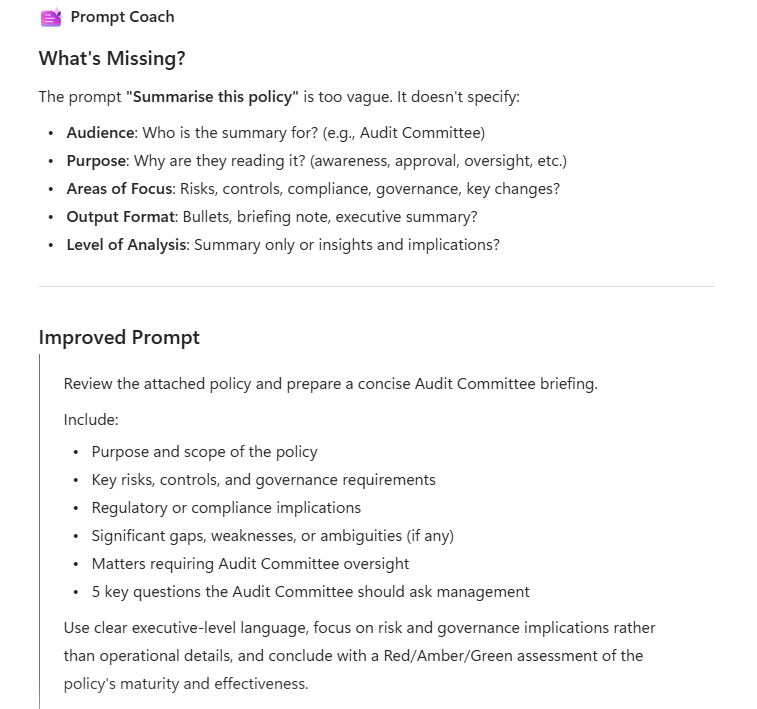
#2 – Prompt Coach
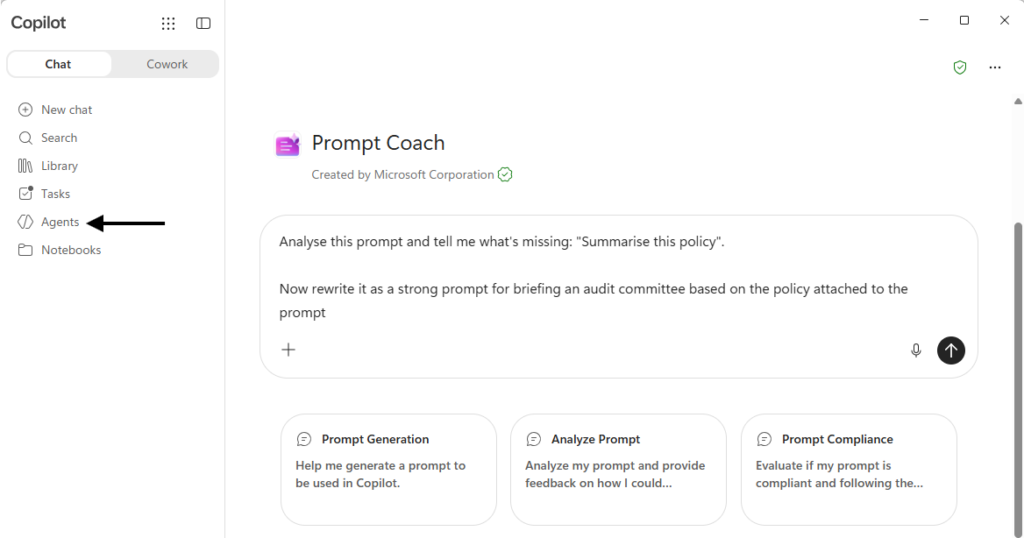
There’s a first-party agent built for exactly this. Prompt Coach sits under Agents in Microsoft 365 Copilot, and it does three things: it generates prompts, it analyses ones you’ve already written, and it explains why a change improves them.
The analysing part is the useful bit. Paste in a prompt that gave you a disappointing answer and ask what’s missing. It’s a faster feedback loop than trial and error.
You doesn’t need the full Microsoft 365 Copilot licence to use the Prompt Coach agent. It’s one of a handful of Microsoft-built agents included at no extra cost in Copilot Chat, the free tier. What it does need is for agents to be switched on for your tenant, and that’s an admin setting. If you’ve got a Copilot licence and there’s no Agents entry in your menu, don’t wait for it to appear. Speak to your Copilot admin and ask them to check it’s enabled.
#3 – Custom instructions
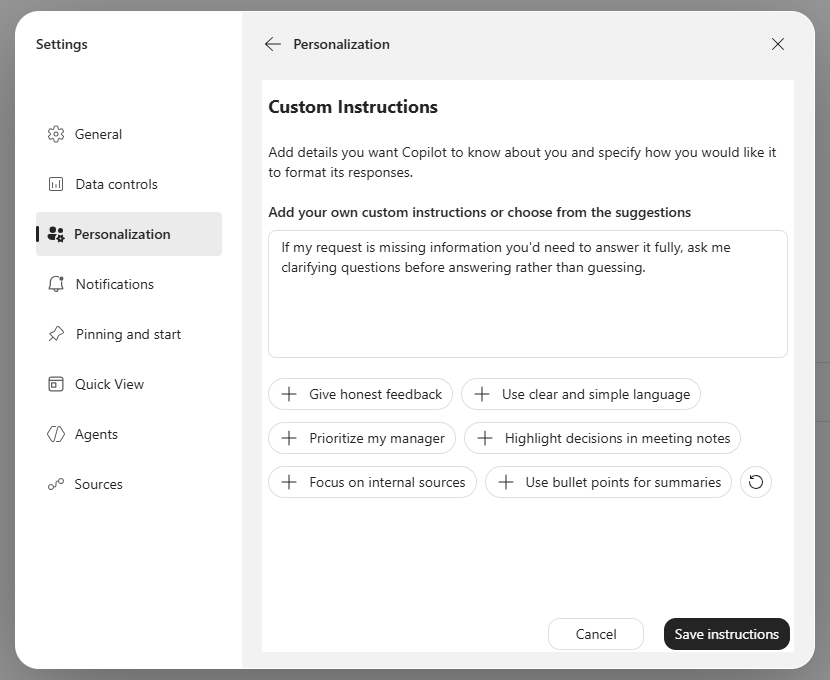
Everything above is done on a prompt by prompt basis. Custom instructions work across all prompts and sessions. These are preferences Copilot applies to every conversation without you restating them. You’ll find them under Settings > Personalisation > Custom instructions, with a textbox for what Copilot should know about you and how you want responses formatted.
Most people, if they use this at all, put their job title in and stop. That’s a waste of the feature. The higher-value use is instructing Copilot on how to handle your prompts, not just how to sound.
The one I’d start with:
- If my request is missing information you’d need to answer it well, ask me clarifying questions before answering rather than guessing.
That single line addresses the root problem this entire post is about. Instead of you remembering the four slots, Copilot notices the empty one and asks. It converts prompting from something you have to get right first time into a conversation.
Others worth having in there: preferences around spelling and formatting (e.g. for me, I ask Copilot to use British English), a default response length so you stop getting four paragraphs when you wanted three bullets, and a line asking it to flag where it’s uncertain rather than smoothing over it.
#4 – Use the prompt library
Once a prompt is genuinely good, save it. Copilot has a built-in place to do that, and the naming is a small mess worth untangling, because it’s the reason people can’t find it.
It launched as Copilot Lab. Microsoft renamed it Copilot Prompt Gallery at Ignite. And Microsoft’s own accessibility documentation still refers to a Prompt Library dialog. Same feature, three names, depending which page you landed on.
What it does: saves prompts, shares them with colleagues by link or to a Teams team, and carries a catalogue of Microsoft-written prompts covering common scenarios.
The reason to bother isn’t personal convenience. It’s that a shared, vetted set of prompts is how a team gets consistent output instead of fifteen people independently discovering the same prompts. That’s a genuinely different thing from a folder of your own favourites, and it’s the point at which prompting stops being an individual skill and starts being a team one.
The other 20%
The output gets you a usable first draft on the first attempt instead of the third. That’s most of the value, and it’s available this afternoon at no cost beyond spending an extra twenty seconds while improving the prompt.
What it doesn’t get you is a correct answer. It gets you a well-formed one, which isn’t the same thing and is occasionally worse, because a badly-formed answer looks wrong and a well-formed answer looks finished.
And there’s a limit underneath that one. Naming your source only helps if the source is worth naming. If the document is three versions out of date, if the SharePoint site is a graveyard, if permissions are loose enough that Copilot can reach things it shouldn’t, then a perfectly structured prompt will retrieve the wrong thing very efficiently. Custom instructions and Prompt Coach make you faster at asking. Neither has an opinion about whether the material you’re pointing at is any good.